
Color Palette and Paint
Extension Actions
- Extension status: Featured
Screenshot - draw rectangle, circle, lines and others shapes or add text on any web pages, then screenshot the result. Screenshot…
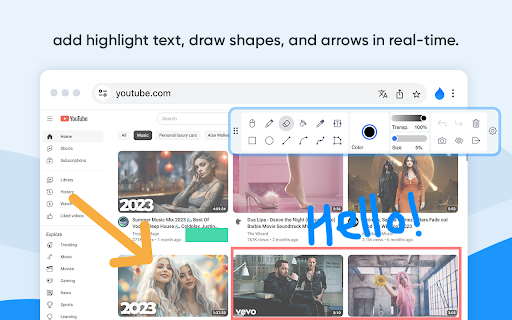
Web Paint - Page Marker & Editor enables you to make annotations and modifications on websites. This extension allows you to draw, add text, insert lines, and highlight content directly on web pages and PDFs. The tool is compatible with both mouse and touchscreen inputs, giving you the ability to create and save your edits to your device.
Whether you're a student, a professional, or simply an avid web user, this extension is a valuable addition. It offers a range of advanced annotation tools, such as a pencil, highlighter, color picker, arrow, polygon, text, and emojis.
Are you accustomed to highlighting important text in books or do you want to draw directly on websites in real-time from your browser? Perhaps you need to share your screen for tasks like reporting technical issues, creating product demonstrations, or crafting how-to tutorials.
Here's why you should consider using our extension:
- It includes all the features found in MS Paint.
- You can adjust the thickness, transparency, and choose preset colors.
- Capture a screenshot of the entire page.
Paint Online is a lightweight and free Chrome extension designed for educational purposes, introducing anyone to the world of drawing right within their browser. Additionally, it offers the opportunity to practice the alphabet, numbers, and artwork while learning.
Paint Tool is absolutely free lightweight digital program to created various drawing that comes loaded with brushes, fonts, shapes, and other resources.
Simple, easy and fun to use, you can enjoy and learn drawing on this chrome extension.
Our Paint Tool extension has a simple and easy to use design. It is not confusing and easily recognisable tool icons (pencil, paint bucket, eraser and others tool) are used in the app which makes it easy for everyone to use.
Paint directly online or add information on a webpage to highlight moments, then take a screenshot of a full webpage or just a selected area with an option to download or share it. Fully customized screenshot that could be printed, saved or sent instantly.
Important !!!
After installation / update Paint Tool, please reload the active tabs in your browser for the extension to work.
What is a Screenshot?
A screenshot, sometimes referred to as a screencap or screen capture, is an image that shows the contents of a computer display. Screenshots let you capture exactly what you’re seeing on your screen to share with others or reference later.
Taking, saving, and sharing screenshots can be extremely helpful. In fact, some insist that the screenshot is the most important thing on the internet. But how can a simple picture of your screen be so vital? Well, you see, screenshots often act as a new age artifact. They serve as a way to prove to others that you’re really seeing the crazy stuff you’re seeing.
Not only do they help you prove your case, they also help you archive the past.
For example, they can help you capture what a website looked like before the latest brand refresh, that weird error message you got a couple months ago, or even a juicy gossip article you don’t want to risk forgetting.
How can I use Screenshot?
Screenshots aren’t just handy, they’re also revolutionary to getting more work done, faster.
About the belief that screenshot can be extremely helpful when you need to demonstrate something that would otherwise be difficult to explain in words.
Screenshot Can Help You Get More Work Done
1. Collaborate with Others
Does your coworker want your input on a new webpage they’ve put together? Or do they need you to look over a brochure they’re having printed? Instead of writing a lengthy email with edits, take a screenshot and wow your coworker with excellent, efficient feedback.
2. Demonstrate How to Perform a Function
Don’t just tell. Show. Demonstrate exactly what you’re talking about with a screenshot. By using a screenshot that shows exactly what you mean, there’s less chance that you’ll be misunderstood. And that means less confusion, less time explaining, and more time back in your day.
For example, explain to a new employee how to login. Instead of telling them, you can quickly send them a screenshot that they can reference again and again without having to repeatedly ask you.
A screenshot with numbered steps is quick to make and easy to understand
3. Show Exactly What’s Happening
If you’ve ever contacted your IT or Web Support Team to report a bug, you’ve likely been asked to provide a screenshot. That’s because not everyone’s computer is the same. Depending on your machine, the operating system it’s running, the browser version you’re on, the way something appears for you could be completely different for others.
Providing a visual example of what you’re looking at helps others see exactly what’s going on and identify what might be going wrong.
A screenshot of an error message helps avoid confusion by showing someone exactly what you’re seeing
The best part about screenshot? They’re easy! As Buffer notes, screenshots are powerful yet simple to use. In fact, it only takes a second to make a screenshot. So start using screenshots today, and download a
Alternatively referred to as a print screen, screen dump, snapshot, or screen capture, a screen shot or screenshot is an image of what's currently displayed on a screen. Screenshots can be created by a software program or operating system. Once a screenshot is captured, it can be saved as an image file (e.g., GIF or JPEG). You can also manipulate and print the image after it is saved. The picture is an example screenshot from the game.
What Is a Screenshot?
When used as a verb, screenshot means capturing a static image of a device's display. In other words, it takes a picture of whatever shows on the computer, mobile, or tablet screen at the time.
Screenshot can be useful for many situations:
-Sharing screen images with friends on social media.
-Showcasing software for a review.
-Demonstrating how to do something in a tutorial.
-Showing an error message or software issue for technical support troubleshooting.
-Saving snippets of anything that cannot be easily printed.
How to Take Screenshot
You don't need special software to take a picture of the screen because screenshot functionality is built into all current operating systems. Some devices even capture specific portions of the screen.
Screen Capture Programs
Many graphics programs, also have built-in screen-capture capabilities. Dedicated screen capture software might offer several benefits:
Automatically name and save screenshots to a specific folder.
Auto-scroll functions to capture long documents like web pages that don't fit on the screen.
Timed Screen capture to add a delay while you prepare the workspace before capturing.
Markup tools that add callouts, arrows, shapes, and text annotations to screenshots.
Options to include or exclude the mouse cursor.
There is screen recording software available that captures all of the activity on a computer monitor and turns it into a video file.
Latest reviews
- Lou
- Very useful!
- Hashem Alqudsi
- very useful, the tools are many and easy to use
- Marcelo Irigaray
- Incredibly useful
- Chie O.
- Easy to use!
- Aadarsh Tripathi_405
- i think it is the best extension for web page marking and drawing
- kamilly siqueira
- really useful
- Cruz Salcedo Gabriel
- like
- sneha shaw
- good
- callanyonefrompc
- So freaking annoying. Let me test the extension out without prompting me to review every other click. Other than that, this extension is pretty good but it could be better. 1.) Instead of drawing an empty rectangle and then filling it, it would be nice to be able to just draw a filled rectangle. 2.) I wish that I could move and even resize rectangles I already drew.
- Timmy Rose Lampis
- good to use
- hallos1212
- enoying cause force me to rate
- Yaron Ben Nun
- Awesome app!
- Tanishq Singh
- Nice extension though
- SuperTatchi
- great
- Paolo “IN3AQK” Mattiolo
- perfect for my lessons
- glerbaglerb
- writing this so it shuts up about me wanting to rate it, please shut up. works but keeps pestering me and makes me want to rip out my eyeballs and slingshot them away to terraria so they can become a cool boss and not see that stupid rate me thing. Good app though, works as intended just shut. shut up.
- Kyle Karner
- im writing this so it hopefully climbs up out of my tiny rectal canal and stops begging for me to rate it
- arun hnoothip
- good paint
- Anurag Geddam
- it extends to brave too, plus it occupies very less of the screen - on top of being movable. But the eraser needs a bit of smoothness and improvement on size adjusting
- Himanshu Panwar
- its easy to work with. amazing work guys, keep it up.
- Black Blank
- its pretty good , the markup can switch back and forth from writing and to the actual application unlike markup, theres also other good features
- Viet Pham Quoc
- i mean it works but the UI and design look nothing like how its shown (and this feel like it has been vibe coded anyway, so cheap)
- kong jingwen
- good and easy
- Raj Kadam
- reallly good
- Rudylol
- Good.
- roger yu
- very good
- Lamar4ik
- good
- Tom Mars
- Does what is says on the tin.
- Alexandre Henriques
- Top
- Mohammad Fahim Amin
- ts good but it kept begging me to write a review.
- Victor Gomes
- Top
- Anika Kohli
- Its good but it kept begging me to write a review.
- Drizer blox
- the extension works properly but keeps begging me to review it plus the eraser is literal garbage like half of the time it misses to erase the part i want to erase
- kiran shivanand totager
- super usefull
- Shaxriyor Xolmirzayev (ProXBoy)
- cool
- Econo
- good!
- sad impho
- Good app
- GreenInnovate
- Best
- osama fawzy
- great
- Christie Hoffman
- Better than writing on cave walls!
- Kingsley Obeng
- very helpful
- Che Asyraaf Bilal
- Good tools
- Mst. Jannatul Ferdouse
- helpful
- Hector Narvaez
- Good
- Charles Peeples
- Good.
- iqbal shaikh
- great only thing missing is highlighter
- David Hartnagel
- Useful and ergonomic
- Portal Maniac
- Useful and does the job neatly
- Noah walters
- Just doing this so it stops asking me to review it
- Eshan M.K
- verry useful app