
chromeIPass
Extension Actions
KeePass integration for browser Chrome using KeePassHttp
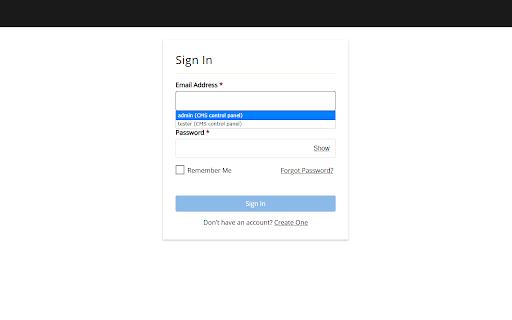
chromeIPass is a lightweight browser extension that connects your web browser (Google Chrome) to your local KeePass (or KeePassXC) database (via the KeePassHttp plugin) — enabling seamless, secure autofill of usernames and passwords on websites you visit.
Changes:
3.0.0 - initial release of revamped (manifest v3) good old chromeIPass developed by Perry Nguyen and Lukas Schulze
Support:
* Please post any questions or support issues at the github messenger/tracker (the "Developer Website" link to the right)
Features:
* Secure integration with KeePass using the KeePassHttp plugin (https://github.com/alan-null/keepasshttp/ download from https://github.com/alan-null/keepasshttp/releases)
* Automatically detect and fill login forms in Chrome by using entries stored in KeePass.
* Support for multiple logins at a single site (intuitive pageAction-based workflow)
* Context menu entries for manually selecting username and password fields to fill
* Notifications are always displayed whenever passwords are retrieved from KeePass, in some instances it is even possible to deny and allow access. (When the host names do not match exactly, user interaction is required to allow access; the decision can be remembered).
* Open source, available for inspection at https://github.com/alan-null/chromeIPass
Requirements:
* KeePass 2 (http://keepass.info) version 2.17 or newer
* KeePassHttp (https://github.com/alan-null/keepasshttp/ download at https://github.com/alan-null/keepasshttp/releases)
Directions:
1) Install KeePass
2) Install KeePassHttp by dropping KeePassHttp.plgx into the KeePass Program Files directory (i.e. C:\Program Files (x86)\KeePass Password Safe 2\Plugins)
2a) Log into KeePass
2b) Verify KeePassHttp has been installed correctly by checking Tools > Plugins
3) Navigate to any page containing a password
4) Click the KeePass icon in the URL bar and click the "Connect" button
5) Switch to the KeePass window and enter a descriptive name for your "Chrome Browser" into the dialog that popped up and click save.
6) Your passwords are now securely retrieved from KeePass and automatically entered into password forms and fields when needed.
7) Passwords in KeePass should be entered with the "Title" containing the domain or host name for the site in question; KeePassHttp does some basic pattern matching, for example "google.com" would match http://login.google.com/ if there were such a thing.
8) If you are ever lost, click on the KeePass icon in the URL bar and it will let you know status as well as any available options.
*It is recommended to disable the builtin Chrome password management when using this extension.*
Latest reviews
- Derek Leonard
- Love this KP auto-fill extension. Only issue is it keeps auto-loading KP when tabs are clicked that chromeIPass thinks I need to enter creds for. Only happens on home PC, not work (both have same settings)
- Floris van der Zwaard (Florisz)
- Used for many years, but lately stopped working for more and more websites, while not recognizing username and/or password fields. Although it finds the credentials from my database, it is not able to fill in the fields. Also not after manually pointing and specifying the credential fields on the website. Moved to KeepassHelper, which works well
- Milan N
- Shoutout to Alan Płócieniak, thanks for keeping project alive alongside with keepassHTTP.