
Plain Time Tracker
Extension Actions
Automatic active-tab time tracking with idle redaction, daily totals, and local CSV export. Privacy-first.
Track your work time automatically, right in Chrome — no manual timers, no cloud accounts, and no privacy trade-offs.
Plain Time Tracker is a simple but powerful time tracking tool designed for freelancers, employees, contractors, and anyone who needs an accurate, raw record of where their working hours go.
🚀 Key Features
1. Automatic Active-Tab Tracking
No need to remember to start or stop a timer. Plain Time Tracker logs time automatically when Chrome is in focus and you have an active tab open. As soon as you switch tabs, change windows, or lose focus, the current session stops. When you return, a new session starts.
2. Smart Media Detection
Continues tracking during videos and meetings! The extension detects when you're watching videos (YouTube, Netflix, etc.) or in meetings (Google Meet, Zoom, Teams) and prevents idle timeout, ensuring accurate time tracking for these activities.
3. Full URL Logging
We record the complete URL (not just the domain) of the active tab. This means you can see exactly which page you were on — perfect for project-specific reporting.
4. Raw Data Export
Export your tracked time as CSV with every individual session including start time, end time, duration in seconds, URL, and page title. No summarization or aggregation — just raw, unmodified data for your own analysis.
5. Built-In Day-by-Day Viewer
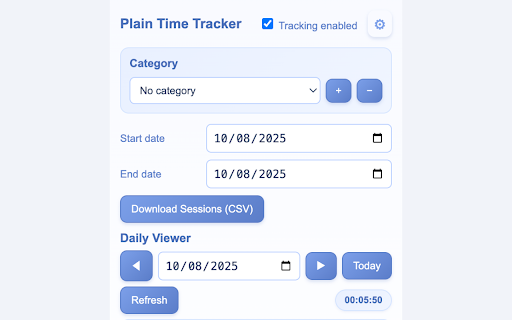
Check your logs without exporting: pick a date, click through previous/next days, and see a table of sessions with their start time, end time, duration, and URL.
6. Intelligent Idle Detection (15-Minute Threshold)
If you've been inactive for 15 minutes or more, Plain Time Tracker automatically ends the session and removes that idle time from the total. However, if media is playing or you're in a meeting, idle detection is bypassed to ensure accurate tracking. This keeps your reports clean and accurate.
7. Pauses When Not Working
Tracking automatically pauses when:
Chrome loses focus (you switch to another app)
Chrome is minimized
Your device is locked
When you return, tracking resumes automatically.
8. Red Recording Badge
A small red “•” appears on the extension’s toolbar icon when tracking is active. When tracking stops (idle, minimized, unfocused, or disabled), the badge disappears.
9. Incognito Toggle
By default, Incognito tabs are not tracked. If you need them logged (for client work or testing), you can explicitly enable Incognito tracking in both Chrome’s extension settings and in Plain Time Tracker’s popup.
10. 100% Local Data — No Cloud, No Accounts
All your time logs are stored locally in Chrome’s storage on your device. Nothing is ever sent to a server or third party.
🛠 How It Works
Install and Pin the Extension
Once installed, click the puzzle icon in Chrome and pin Plain Time Tracker to your toolbar.
Enable Tracking
Open the popup and ensure the “Tracking enabled” checkbox is on. The red badge will appear whenever tracking is active.
Work as Usual
Plain Time Tracker quietly runs in the background, recording your active tab and time spent whenever you’re working in Chrome.
Check or Export Your Data
Use the Day-by-Day View in the popup to quickly check your recent work.
Export Raw Sessions as CSV for billing, time sheets, or analysis.
Stay Accurate
The built-in idle detection and focus tracking ensure your totals reflect actual work time, not background tabs or away-from-keyboard moments.
📊 Perfect For
Freelancers who bill by the hour and need exact work logs for invoices.
Remote employees required to submit daily or weekly time sheets.
Researchers and writers tracking time spent on various sources.
Developers and testers logging active time per site for QA and productivity.
Anyone curious about their browser-based work patterns.
🔒 Privacy & Security
Plain Time Tracker is built with privacy first:
No account required — start tracking instantly after install.
No uploads — your data stays on your device.
No content capture — we record the active tab’s URL and title, but never scrape or read page contents.
Full control — you can clear all stored data at any time from the popup.
📁 Permissions Explained
tabs — Needed to detect when the active tab changes, and to read its URL and title for time logging. Only the active tab is read; no history is accessed.
storage — Used to store time logs and your preferences locally on your device.
idle — Allows detection of when you're inactive (15+ minutes) or when the device is locked, so idle time can be excluded (unless media is playing).
<all_urls> — Required to log the URL of whatever site you are working on and to detect media playback; without it, we could not track time across all sites or detect videos/meetings.
📥 CSV Export Details
Raw Sessions CSV — Exports every tracked session with:
• Start timestamp (local time)
• End timestamp (local time)
• Duration in seconds
• Full URL
• Page title
🖥 Interface Overview
Toolbar Icon & Badge
Red “•” badge = tracking active
No badge = paused or tracking disabled
Popup Sections
Tracking Toggle — Turn tracking on/off
Date Pickers — Choose start/end dates for exports
Download Sessions (CSV) — One-click CSV export of raw session data
Advanced — Toggle Incognito tracking, clear all data
Day-by-Day View — Navigate through days, see total time, and list of sessions
💡 Tips for Best Results
Keep Chrome in focus while working to ensure accurate totals.
If you work in multiple Chrome windows, only the active window/tab is tracked.
Use the “Today” button in Day-by-Day View to quickly return to the current day.
Regularly export your logs if you need backups — all data is stored locally.
If you need to track Incognito tabs, enable it in both Chrome’s extension details and Plain Time Tracker’s Advanced settings.