
uTorrent | Torrent UI Sender
Extension Actions
The ultimate uTorrent helper! Find all links in a popup or right-click to send & choose the download folder instantly.
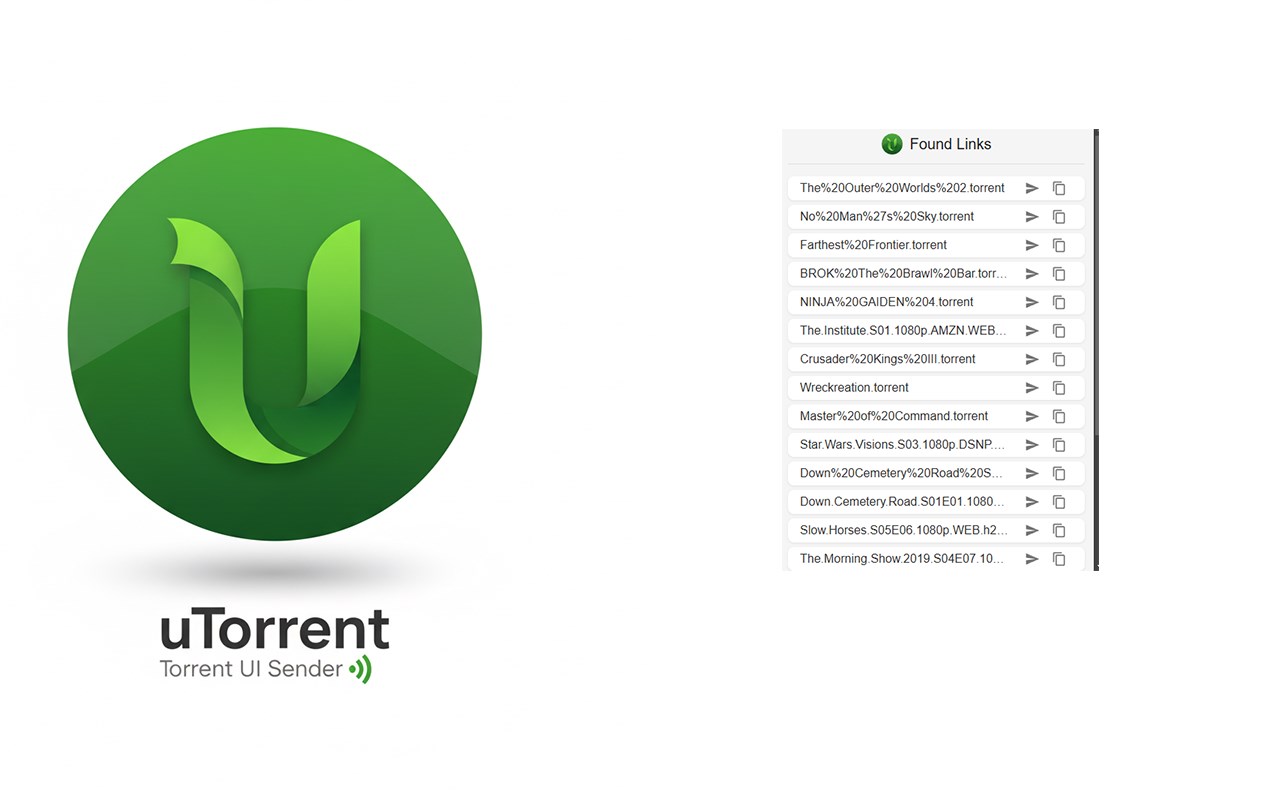
🚀 Take Your uTorrent Experience to the Next Level on Edge!
uTorrent | Torrent UI Sender is designed from the ground up to create a seamless bridge between your Microsoft Edge browser and your uTorrent Classic client. More than just a simple link sender, this extension acts as a powerful remote download manager, automating your workflow with smart features and a sleek design that honors the iconic uTorrent identity.
Whether you are browsing for magnet links or .torrent files, this extension ensures you never have to leave your browser to start a download.
🌟 Key Features:
* 📂 Instant Folder Selection (Context Menu): The ultimate power feature! Right-click any link and use the "Send to uTorrent..." menu to choose your specific download destination. The extension dynamically fetches your list of download directories directly from your client. Say goodbye to sorting files manually after they finish!
* 🔍 Smart Link Hunter: Not sure where the download button is? Click the toolbar icon to open a modern popup that instantly lists all .torrent and magnet: links hidden on the current page.
* 🟢 Dynamic Page Awareness: The extension is intelligent. The toolbar icon automatically lights up with uTorrent's signature green color the moment it detects downloadable content. You get a subtle visual cue without annoying notifications.
* ⚡ One-Click Actions: Send individual links to your client or copy them to your clipboard instantly via the user-friendly popup interface.
* 🎨 Modern & Native Design: Enjoy a clean interface designed to feel right at home on Windows and Edge, inspired by the classic uTorrent aesthetic.
* 🔔 Real-Time Feedback: Get clear notifications when a link is successfully sent, copied, or if there is a connection issue.
🛠️ How to Get Started:
1. Install: Add the extension to Microsoft Edge.
2. Connect:
* Open the extension's Options page.
* Enter your Port, Username, and Password.
* *(Note: You can find these in your uTorrent client under: Options > Preferences > Advanced > Web UI)*.
* Click "Save Configuration".
3. Start Downloading:
* Method 1 (Popup): When the icon turns green, click it to see and send links.
* Method 2 (Right-Click): Right-click any link, hover over "Send to uTorrent...", and select your target folder.
🔒 Privacy & Security:
Your privacy is our priority. This extension does not collect, track, or share any personal data or browsing history. All your settings (including WebUI credentials) are stored locally and exclusively on your own device.