NZBridge — NotebookLM Zotero Bridge
Extension Actions
Bidirectional sync between Zotero collections and Google NotebookLM notebooks
NZBridge — NotebookLM Zotero Bridge
Bridge your research library with AI. NZBridge connects Zotero — the world's most popular reference manager — with Google NotebookLM, enabling seamless bidirectional sync between your academic collections and AI-powered notebooks.
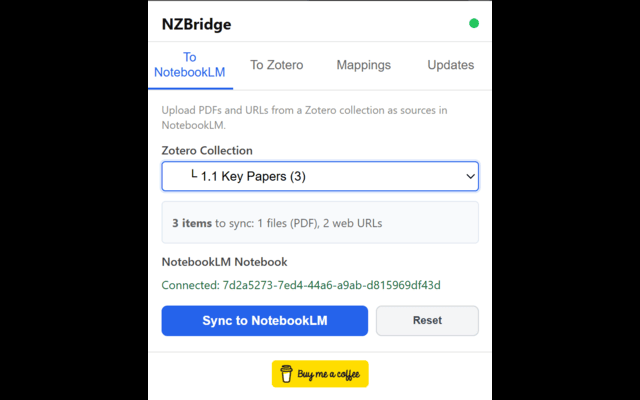
TO NOTEBOOKLM (Forward Sync)
• Upload local PDF attachments directly as NotebookLM sources
• Sync web URLs and DOI links as website sources
• Smart URL selection — prefers open-access links (PMC, arXiv, bioRxiv) over bot-protected publisher sites
• Batch processing — multiple URLs uploaded in a single operation
• New notebooks are automatically named after your Zotero collection
• Duplicate detection — already-synced items are skipped
TO ZOTERO (Backward Sync)
• Extract saved text notes from NotebookLM's Studio panel
• Captures full note content, not just titles
• Creates proper Zotero document items with child notes — fully compatible with Notero and other sync tools
• Automatic tagging: default tags, notebook name, note type, and custom user tags
• Re-importing updates existing notes instead of creating duplicates
WORKS ON ANY SCREEN SIZE
• Supports both wide (3-column) and narrow/vertical (collapsed tab) NotebookLM layouts
• Hierarchical collection browser with item counts
• Select/deselect individual notes before importing
REQUIREMENTS
• Zotero 7 or later with the NZBridge plugin installed
• A Google NotebookLM account
• Zotero must be running for the extension to connect
HOW IT WORKS
The browser extension communicates with a lightweight Zotero plugin via localhost. Your data stays local — nothing is sent to third-party servers. Sources are uploaded directly to your NotebookLM notebook through browser automation.
Get started: install the Zotero plugin from GitHub, open a NotebookLM notebook, and click the NZBridge icon in your toolbar. Check the tutorial on the GitHub page (google NZBridge)