
Live Captions & Translation for Presentations - BridgeScribe
Extension Actions
Real-time captions and translation from your microphone for live presentations, talks, and meetings
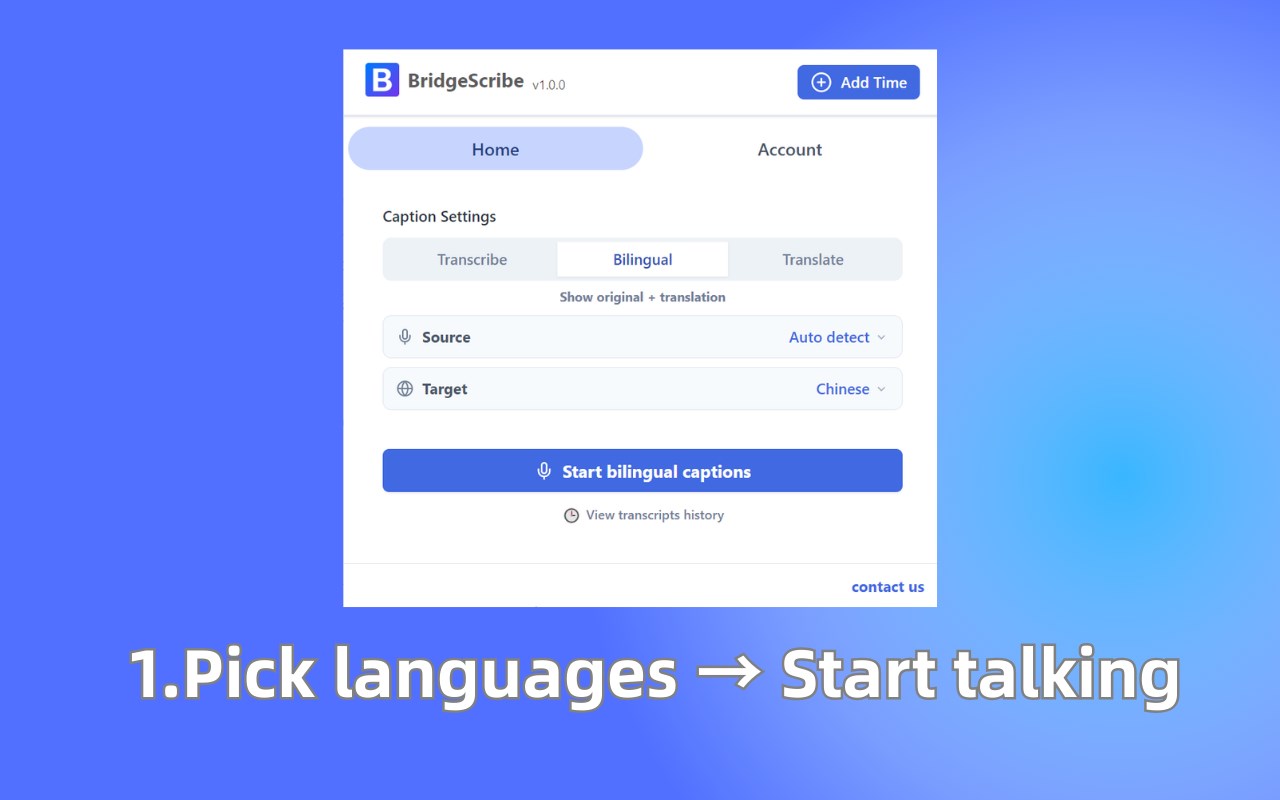
Real-time microphone captions, live transcription, and instant translation for sermons, lectures, presentations, meetings, and classes.
BridgeScribe is a live captions and translation tool that turns your microphone input into real-time captions, translated subtitles, and bilingual subtitles on your screen. It is designed for low-latency live speech-to-text, making it useful for public speaking, teaching, preaching, training, and accessibility.
Whether you need live subtitles for presentations, speech-to-text captions for lectures, translated captions for sermons, or bilingual captions for meetings and classes, BridgeScribe helps make spoken content easier to read and follow in real time.
BridgeScribe supports multiple caption modes, adjustable text size, and clean on-screen layouts so you can use it during live presentations, classroom teaching, church services, webinars, video calls, and language practice.
Key features
- Live Speech-to-Text Captions
Turn microphone audio into real-time on-screen captions
- Real-Time Translation
Translate spoken words into another language while you speak
- Bilingual Subtitles
Show original speech and translated text together
- Live Captions for Presentations
Use large, readable captions during talks, lectures, demos, and public speaking
- Captions for Sermons and Church Services
Make spoken messages easier to follow for multilingual audiences
- Captions for Lectures and Classes
Help students read along, understand faster, and reduce missed information
- Resizable Caption Text
Choose compact or large text for better readability
- Multiple Display Modes
Switch between Transcribe, Translate, and Bilingual modes
- Low-Latency Performance
Fast caption updates designed for live speaking scenarios
- Readable, Clean Caption Output
Optimized for clarity during natural speech and everyday vocabulary
Best for
- Sermons and church presentations
- Lectures, lessons, and online classes
- Live presentations and public speaking
- Meetings and video calls
- Workshops and training sessions
- Language learning and speaking practice
- Accessibility and hearing support
Modes
- Transcribe: show live captions in the original spoken language
- Translate: show translated captions only
- Bilingual: show both original and translated subtitles together
How to use BridgeScribe
- Install BridgeScribe
- Choose Transcribe, Translate, or Bilingual mode
- Select your source language and target language
- Click Start and speak into your microphone
- View live captions, translated subtitles, or bilingual captions on screen
- Adjust caption size and layout for your audience or workflow
Use cases
BridgeScribe is useful when you need:
- live captions for sermons
- captions for lectures
- real-time subtitles for presentations
- speech-to-text for meetings
- voice translation for classes
- bilingual subtitles for speaking
- microphone captions for live events
- on-screen captions for teaching and training
Privacy
BridgeScribe requires microphone access to generate live captions and translation while a session is running. Microphone audio is used only to provide the live captioning and translation service. We do not sell your audio or use it for advertising.