
Chat2File - AI Chat Export Tool
Extension Actions
One-click export of AI chats from ChatGPT, Gemini, Doubao, Grok, and more to multiple document formats, including Word and PDF,…
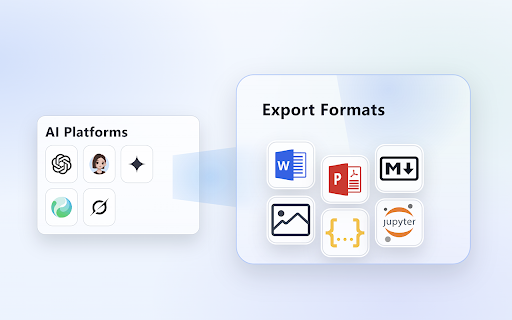
Chat2File – AI Chat Exporter (ChatGPT / Doubao / Gemini / Yuanbao/Grok)
📌 Overview
Chat2File is a browser extension designed to export AI conversations with one click. It supports multiple formats—Markdown, Word, PDF, and more—and allows you to select single or multiple messages for export. It preserves original formatting such as code blocks, tables, math formulas, and lists, making it ideal for saving study notes, technical materials, and important dialogues for long-term archiving or further editing.
✨ Key Features
1️⃣ Multi-format Export – Supports Markdown, Word (DOCX), PDF, HTML, and others.
2️⃣ Clean Selective Export – Choose only the messages you need, avoiding long or cluttered pages for better control.
3️⃣ Faithful Formatting – Retains complex content like formulas, tables, lists, and code blocks for easy reading and organizing.
4️⃣ Batch Export – Export multiple messages or entire conversations at once, perfect for long chats and topic-based materials.
5️⃣ Image & Poster Export – Export as images, including a “Creative Poster” style, great for sharing and display.
📂 Use Cases
• Study Materials & Course Notes – Export key answers to Word/Markdown for ongoing revision.
• Knowledge Sharing & Team Collaboration – Save high-quality replies as PDF/HTML/EPUB for distribution and archiving.
• Data & Table Processing – Export tables from chats to Excel/HTML for further analysis.
• Content Creation & Sharing – Turn conversations into images or creative posters for quick social sharing.
• Development & Research Logs – Export as ipynb / JSON / Markdown for reproducibility and structured documentation.
🚀 How to Use
① After installing the extension, open a chat page on any supported site: ChatGPT, Doubao, Gemini, Yuanbao or Grok.
② An export button will appear at the bottom-right corner of the page.
③ Select messages to export – Enter selection mode and check the messages you want to include.
④ Choose format – Pick your preferred format (Word / PDF / Markdown / Image / HTML, etc.) and confirm to generate and download the file.
⑤ Tip for PDF export – A background tab will open to create the PDF. Please wait while it processes; the file will download automatically, and the tab will close afterward.
Latest reviews
- Ringwell Guo
- Great extension! It works smoothly, but I noticed that when exporting from Gemini, the file name doesn't match the chat title yet. Adding that feature would make it perfect. Still 5 stars for the overall utility!