
Shelf: Tab Manager
Extension Actions
Save tabs for later, restore them instantly. Auto-archives inactive tabs on your own timer, groups by site, search to reopen fast.
Shelf saves your tabs for later and brings them back instantly.
You have too many tabs open. You know it, but you keep them around 'just in case'; Shelf fixes that. It archives inactive tabs automatically, keeps them organized, and lets you restore anything in one click. Free, no account needed, and everything stays on your device.
• How it works:
- Install Shelf and it starts working immediately. Tabs you haven't touched in 8 hours get archived automatically (you can change this timer or turn it off). Archived tabs are saved locally and grouped so you can find them fast. When you need one back, click it and it reopens instantly.
- Pinned tabs, your active tab, and tabs playing audio are never archived. Shelf only touches the tabs you've forgotten about.
• What you see when you click the Shelf icon:
The popup shows your open tab count and shelved tab count at the top. Below that is a search bar and three quick actions;
- 'Shelf tab' closes and archives your current tab (Alt+S)
- 'Shelf others' archives every other tab in the window, keeping only your current one (Alt+Shift+S)
- 'Panel' opens the full archive browser in Chrome's side panel
Below the buttons, you'll see your most recently shelved tabs grouped by site. Click any tab to reopen it. Hover over a tab to see restore and delete buttons.
• The Side Panel (your full archive):
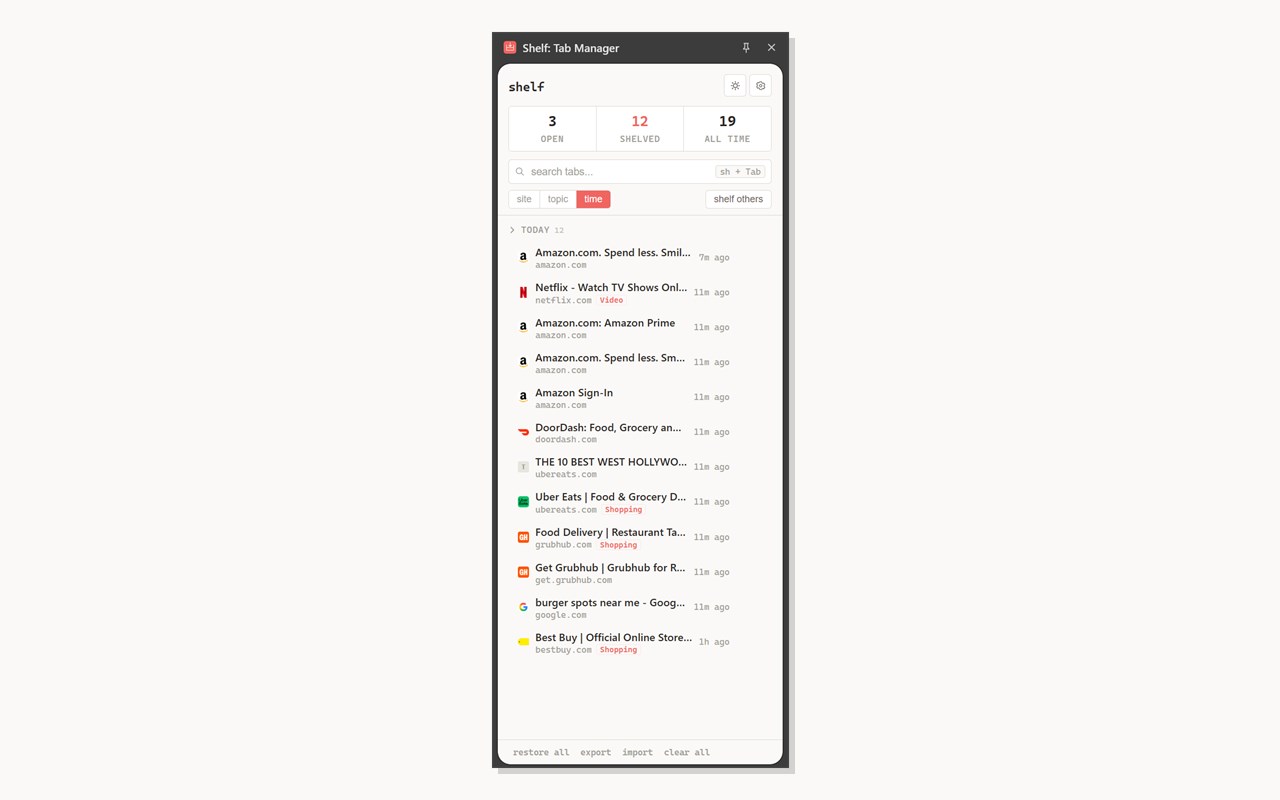
Click 'Panel' or use Chrome's side panel menu to open the full archive view. At the top you'll see three stats: how many tabs are currently open, how many are shelved, and how many you've shelved all time.
• Settings:
Click the gear icon in the side panel to configure:
- Auto-archive on/off: disable this if you only want to shelve tabs manually
- Timer: set how many minutes a tab sits inactive before it gets archived (default is 480 minutes / 8 hours, adjustable from 5 to 2880 / 48 hours)
- Max tabs: how many archived tabs to keep before the oldest ones get removed (default 2000)
- Excluded domains: list of websites that should never be auto-archived (one per line)
Below that is a search bar and three view modes:
- 'site' groups tabs by website (Amazon, YouTube, GitHub, etc.)
- 'topic' groups tabs by detected category (Shopping, Video, Development, News, etc.)
- 'time' groups tabs by when they were archived (Today, Yesterday, This Week, etc.)
Click any group header to collapse or expand it. Hover over a group to see a 'Restore group' button that reopens every tab in that group at once.
At the bottom: 'restore all' reopens everything, 'export' saves your archive as a JSON file, 'import' loads a previously exported archive, and "clear all" permanently deletes everything.
• Theme:
Click the sun/moon icon in the side panel to toggle between light and dark mode. By default, Shelf matches your system setting.
• Keyboard shortcuts:
- Alt+S: archive the current tab
- Alt+Shift+S: archive all other tabs in the window
• Omnibox search:
Type "sh" in Chrome's address bar, press Tab, then type your search. Shelf will suggest matching archived tabs right in the address bar. Select one to reopen it.
• Right-click menu:
Right-click on any page to see "Shelf this tab" and "Shelf all other tabs" in the context menu.
• Your data:
Shelf stores everything locally using Chrome's built-in storage. No servers, no accounts, no tracking, no analytics. Your browsing data never leaves your device. You can export your archive as JSON anytime and delete everything with one click.