
AIFuelMD · Web to Markdown
Extension Actions
Convert web content to Markdown format, easy to submit to AI models
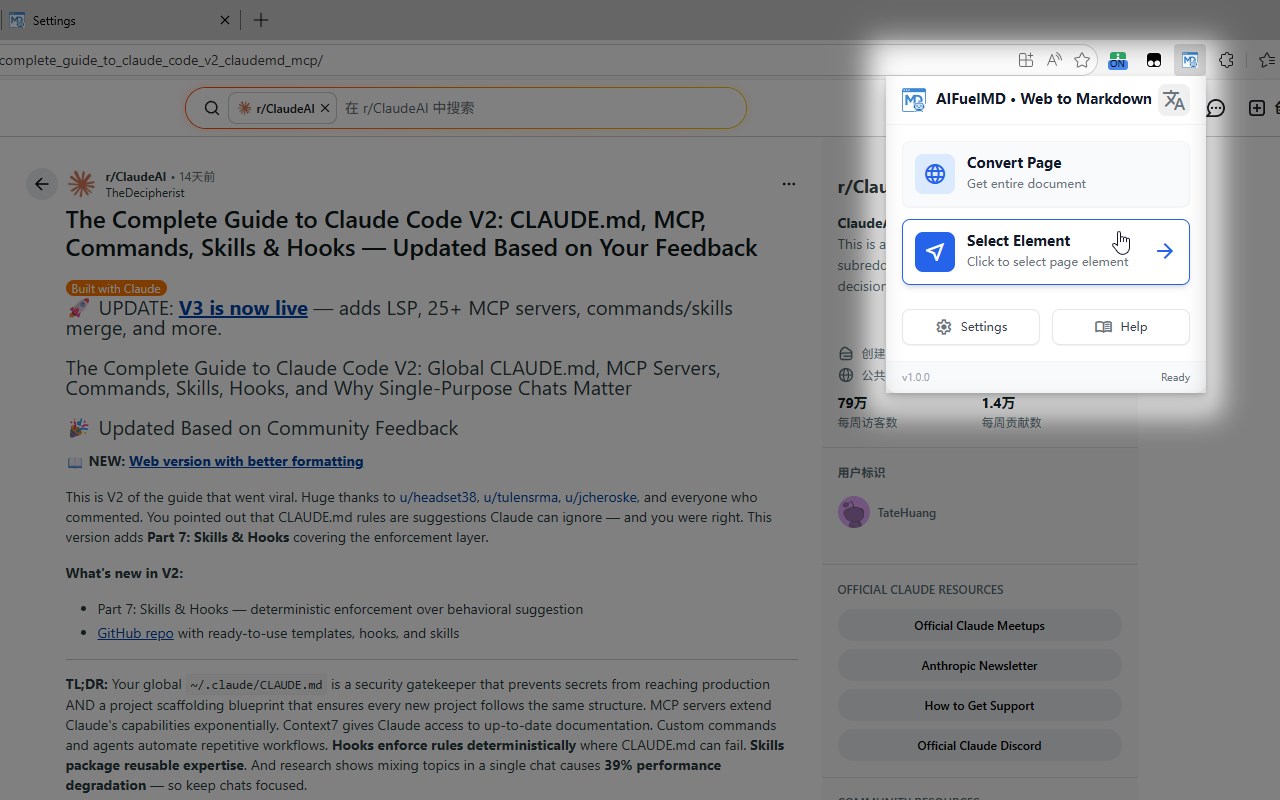
One-click convert web page content to standard Markdown format. Support full page/selected area/element conversion, retain titles, tables, code blocks, etc. Ideal for AI analysis, document sorting and content backup.
🌟 Core Features
- Multi-scenario Conversion:Support 3 conversion methods (full page conversion, selected area conversion, precise element conversion) to meet different needs with flexible operation.
- Complete Format Retention:Intelligently identify and retain titles, ordered/unordered lists, tables, code blocks, hyperlinks, image links in web pages, and output standard Markdown (compatible with GFM syntax).
- Convenient Operation:Provide 3 trigger methods (plugin icon click, right-click menu, shortcut keys). Full page conversion shortcut: Alt + Shift + M, selected area conversion shortcut: Alt + Shift + S for higher efficiency.
- Preview & Edit:Automatically open a preview window after conversion, supporting reading mode and editing mode. You can directly modify the content before copying or downloading.
- Custom Configuration:Support custom conversion behaviors (whether to retain images/links, whether to add source description) and automatic operations (auto-copy to clipboard, auto-download .md files).
📌 How to Use
- Full Page Conversion:Click the plugin icon and select "Convert Full Page", or use the shortcut Alt + Shift + M, or right-click the page and select "Convert to Markdown → Convert Full Page".
- Selected Area Conversion:First select the desired content on the web page, then right-click and select "Convert to Markdown → Convert Selected Area", or use the shortcut Alt + Shift + S.
- Element Conversion:Click the plugin icon and select "Convert Selected Element", move the mouse to the target element (automatically highlighted), click to complete the conversion, and press Esc to cancel the selection.
- Subsequent Operations:View/edit the content in the preview window after conversion, click "Copy" to paste to other tools, and click "Download" to save as a .md format file.
⚙️ Notes
- Not supported on special browser pages such as chrome:// and edge://.
If "Show Preview Panel" is not checked, you must check "Auto-copy to Clipboard" or "Auto-download File" to obtain the conversion result.
- Only image links from allowed domains are retained; you can add image domain whitelists in the settings.
📧 Technical Support
If you encounter usage problems or have feature suggestions, please send an email to: [email protected]