
FLOW PAGE
Extension Actions
Text reading (automatic reading & scrolling)
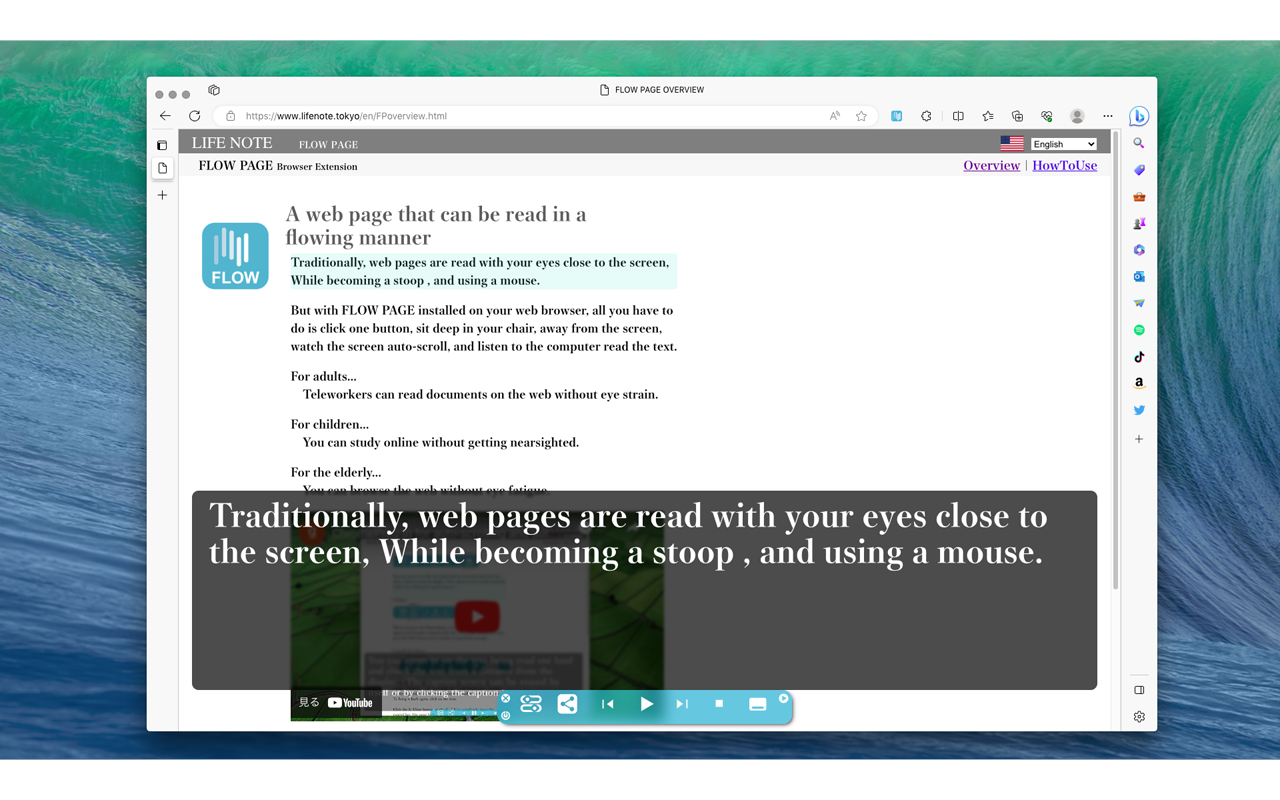
This is an extension that automatically reads aloud text on web pages.
To use it, simply click on the text area of a webpage to start reading. No need to cut and paste text or change language settings.
The page automatically scrolls as it reads. Use the control bar displayed at the bottom of the screen when you click text to pause, stop, fast-forward, rewind, show captions, and more.
Starting with version 1.2.0, it can also read aloud content from the social media platform X.com. To use this feature, click the extension icon on X.com to display the control panel, then press the play button. It will automatically read aloud posts starting from the top of the screen. Once one post finishes, it automatically moves to the next post and scrolls accordingly.
You can register multiple voice settings to your preference.
Even if the control bar is hidden by ads, using the shortcut (CTRL+J or CTRL+0) will jump the control bar back to the top. This jumped position is saved per site, so you won't need to perform this action again on the same site next time.
<FLOW PAGE version 1.2.1 Release Notes>
- Specification Change
Previously, text within SPAN tags on web pages was not read if it contained 36 characters or fewer. This limit has been increased to 136 characters. (Text within P tags still follows the original specification of not reading text under 36 characters.) This change is because text within SPAN tags is often used for product names on e-commerce sites like Amazon, and the software was designed to avoid reading such text.
<Usage Notes>
When used on login screens or transaction pages of financial institutions, there is a rare risk of being mistaken for abnormal software. In such cases, please close this software's control panel by clicking the × button in the upper left corner. (For a more permanent stop, press the Deep Close button in the lower left corner of the control panel. This will prevent the software from launching even if you click text on that site in the future.)
<Basic Functions>
1. Speech (Text-to-Speech)
Clicking text on a site starts reading aloud.
(Selected text is also read aloud)
2. Control Panel
Settings, Share, Rewind, Speech/Pause, Fast Forward, Stop, Captions
Volume, Mute, Close, Deep Close
3. Share
SNS & QR Code
4. Settings
1. Site-specific reading settings
2. Tone and speed adjustment (changes auto-save)
3. Reading mode (default mode settings)
4. Background reading settings
5. Captions
Enlarged display of text being read aloud
6. Extension Icon
This software's launch button
<How to Use>
1. Start reading aloud with a single click on page text
If the text is written within HTML body tags, clicking it will automatically select it and begin speaking. (If you don't want automatic selection, refer to “ClickText Mode” in 3. Pref Settings)
Note: If it's reading aloud in an incomprehensible language...
This occurs if the page's language specification couldn't be read correctly, is missing, or is specified incorrectly. In that case, refer to “Manually Set Site Language” in 3. Pref.
2. Share (SNS, QR Code)
Use the share button to share the current page via Twitter, Facebook, or QR code. (Starting from version 1.1.0, share screens for China (Weibo, WeChat) and Korea (LINE, Kakao) have been added.)
3. Pref (Voice Settings)
3-1. Voice Settings
□ ClickText Mode (Set per site)
For sites where text-to-speech is unnecessary (e.g., shopping sites, video sites, financial institutions, translation tools, documents), uncheck this to disable automatic text selection and prevent the software from functioning.
□ Manually set site language
Check this to display a dropdown menu for manually setting the correct language when speech sounds incomprehensible.
Speed, Tone
Adjust reading speed, voice pitch, etc. Once satisfied with your settings, press “New,” enter a name, then press “OK” to save the configuration. The software will speak according to these settings.
□ Launch after site reading (Smartphone feature)
Forces the interface to display each time a site loads. This is a smartphone feature and should not be used on PCs. On PCs, since you can reconfigure sites marked as unused by clicking this extension's icon in your browser to display the interface, this feature is unnecessary.
□Background speech
On: Does not stop reading aloud when the webpage moves to the background
Off: Stops reading aloud when the webpage moves to the background
3-2.key (Shortcut Keys & Ad Jump Function)
When ads hide this software's control panel, pressing the shortcut key CTRL+J will jump the control panel back into view for operation.
To configure shortcut functions, press the key button at the top of the settings screen. This displays the shortcut list where you can specify the jump height.
4. Rightmost triangle button (Compact screen display)
When the control bar is obstructing the screen, press the rightmost triangle button to collapse it into an icon button on the right edge.
5. Control Panel Clear Button
Pressing the × button on the far left completely discards this software's interface screen.
6. Deep Close Button (Power button icon in the lower-left corner of the control panel)
Use this button when you no longer wish to use this software on the current site. A single press closes the control panel and disables text click activation. Once pressed, it records this setting. From the second time onward, clicking text on that site will not activate it. To revert, launch the extension via its application button in the browser's top-right corner. Then, press the reddened Deep Close button within the displayed control buttons. The reddened button will return to its original color, canceling the OFF setting.
7. Caption (Text Enlargement Display)
The caption button on the far right enlarges the text being read aloud.
Translated with DeepL.com (free version)