
All-in-One Search
Malware Detected
This extension has been flagged as potentially malicious.
Extension Delisted
This extension is no longer available in the official store. Delisted on 2026-04-16.
Extension Actions
Shows icons for different websites next to input boxes; click to search with the current input.
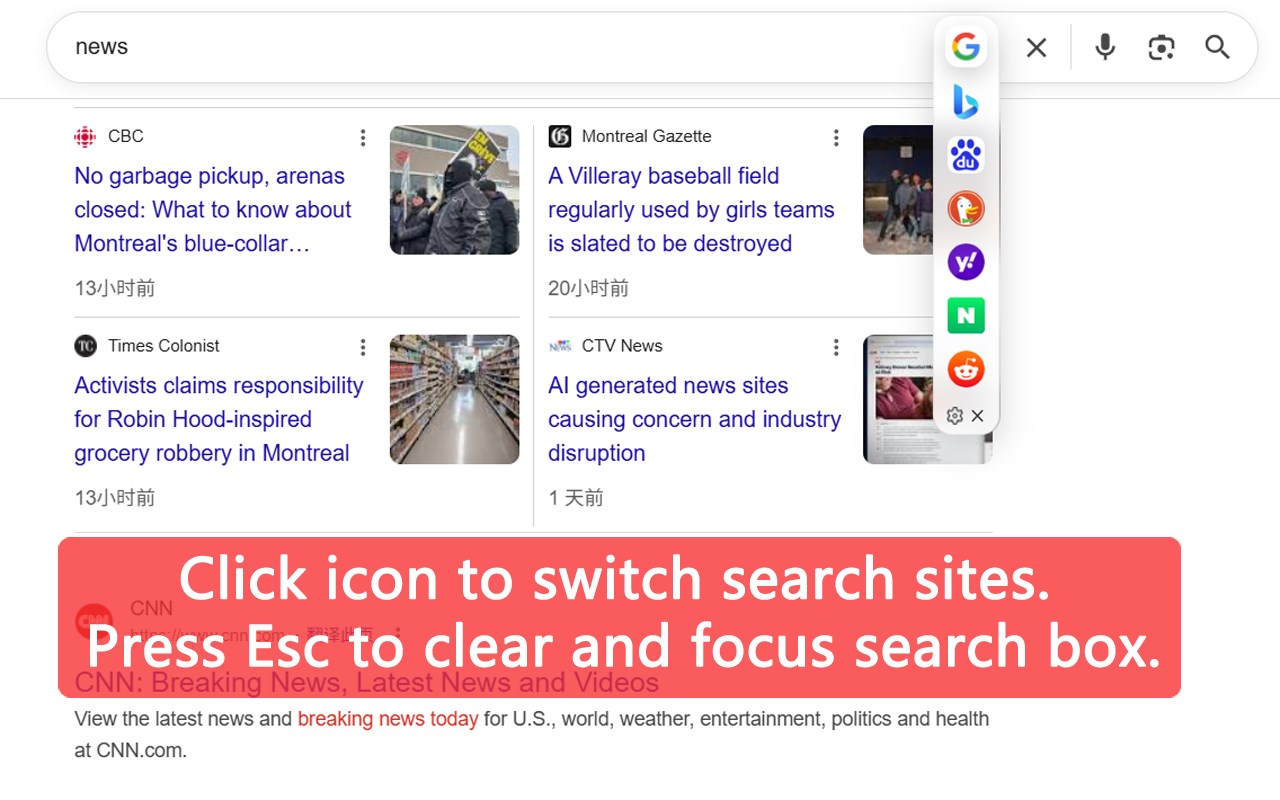
Extension Overview:
Cross-Site Search Tool: This efficiency extension adds clickable site icons (e.g., Amazon, eBay, AliExpress, Walmart, 1688, Taobao, JD.com, Pinduoduo, Google, Bing, plus any custom sites) next to search or text input fields on any webpage. Click an icon to instantly search the current input text on that target site.
Main Features:
Search Icon: Click any site icon next to an input field to jump directly to its search results.
Quick Clear: Press Esc to clear the input field and focus it – ready for a new search without using the mouse.
Context Menu Search: Right-click selected text to search it instantly on sites from your chosen group. Set a group for the context menu by clicking its mouse icon.
Search Groups: Create groups for different scenarios. Only icons from the active group are shown next to input fields.
Open All: Add the special "Open All" icon to a group. Click it to open search results for your query on all sites in that group simultaneously, neatly organized in a tab group.
Custom Sites: Add any site! Provide its search URL template (use {q} for the search term). The extension fetches the icon and homepage automatically.
Auto-Detection: The extension detects if the current page is a search page, allowing quick addition to your site list.
How to Use:
Access Settings: Hover over the extension icon next to an input field to show the dropdown. Click the settings button (gear icon) at the bottom left.
Add/Remove Sites from Groups:
Add: Drag & drop or double-click a site icon from the main list onto a group.
Remove: Drag & drop or double-click a site icon within a group to remove it.
Create a New Group: Click the "New Group" button below the group list. (Note: Icons only appear next to inputs for sites within the currently active group, unless set to "Show Globally").
Reorder Sites: Drag site icons left/right within a group to change their order.
Set Context Menu Group: Click the mouse icon next to a group to make it your right-click (context menu) search source.
Add "Open All" to a Group: Drag the "Open All" icon (first icon in the main list) into a group. Click it during a search to open all group results.
Add Custom Site: Click the "+" icon in the site list. Enter the site name, homepage URL, and search URL template (use {q}). The icon is auto-fetched but can be changed.