
Anaplan Formulator
Extension Actions
CRX ID
lppbmegnamieefkphkgkihflkflnnddf
Status
- Live on Store
Description from extension meta
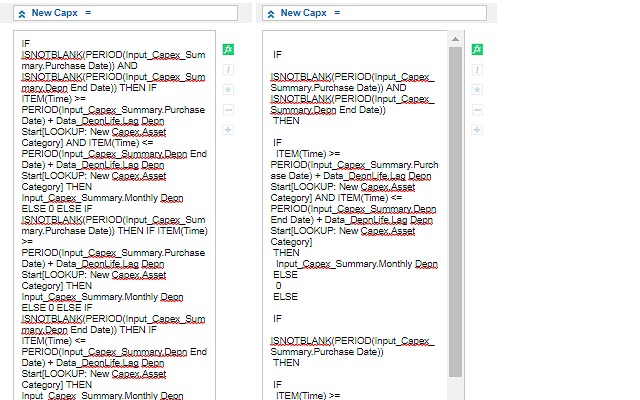
Adds a return after each IF, THEN,or ELSE in an Anaplan formula
Image from store
Description from store
This extensions makes long formulas in Anaplan easier to read. It takes the formula and inputs a return before and after each IF, THEN, and ELSE.
Click the Extension icon when you have a formula that you would like spaced out.
This project is completely open source.
Check out our GitHub: https://github.com/rmonique/Anaplan_Formulator
V1.2
Updated logo and banners. Thank you to my friend Allie for the hard work! (Check out her work here: https://www.allierichards.com/) :)
Latest reviews
- Nguyễn Hữu Thiện
- In the description it says this add-in is compatible with the new experience. But not!
- Nguyễn Hữu Thiện
- In the description it says this add-in is compatible with the new experience. But not!
- Matteo gambolo
- Genius!!
- Matteo gambolo
- Genius!!
- Alejandro Gomez
- It does what is expected of it. For any formula with a long and entangled nested IF statement, just follow the next steps: 1. Display the formula on the left side of the module instead of on top of it. 2. Open the edition mode (when the green tick and red cross are displayed in the formula box) 3. Then hit the icon of Anaplan´s Formulator Extension on the top right side of your google chrome window. 4. Your formula should get broken down in smaller chunks, clearly showing each clause of your IF statement (IF, THEN, ELSE) No more copy-pasting these kind of formulas in OneNnote anymore!
- Alejandro Gomez
- It does what is expected of it. For any formula with a long and entangled nested IF statement, just follow the next steps: 1. Display the formula on the left side of the module instead of on top of it. 2. Open the edition mode (when the green tick and red cross are displayed in the formula box) 3. Then hit the icon of Anaplan´s Formulator Extension on the top right side of your google chrome window. 4. Your formula should get broken down in smaller chunks, clearly showing each clause of your IF statement (IF, THEN, ELSE) No more copy-pasting these kind of formulas in OneNnote anymore!